Getting started with the SquaredUp MCP
This feature is available with an Enterprise plan
The SquaredUp MCP server connects Claude, ChatGPT, Copilot or Cursor straight to your SquaredUp organization. Ask about your dashboards, health and KPIs and get answers from live data, or have your assistant build and update dashboards for you, without leaving the chat.
What is an MCP?
Your AI assistant is smart, but it can’t know about systems it can’t reach. To ask an unconnected agent about your SquaredUp data, you have to manually copy it into the chat every time something changes.
MCP (Model Context Protocol) fixes that. It's an open standard that lets an AI assistant directly use other products. Think of it as a socket for AI to plug into: any assistant that supports MCP can connect to any product that offers an MCP server, with no custom integration in between.
An MCP server hands the assistant a list of plain-language actions it can do, such as list dashboards or run this tile. The assistant reads the list and picks whichever action it needs to answer your question. You don't need to write code or learn a query language. You just talk to it.
Your assistant sees exactly what you can see in SquaredUp; there's no API key to manage, and most assistants ask your permission before changing anything.
Getting set up only takes a few minutes. An admin enables MCP for the organization; then you simply add the server address to your assistant and sign in.
What an assistant can do
- Dashboards and tiles
List, read, create, clone, and update dashboards and tiles, and run them to get the data back. - Data and the knowledge graph
Query data streams, resolve objects, and run graph queries across your data sources. - Workspaces and data sources
List and manage workspaces and data sources, and look up the plugins they use. - KPIs and alerting
Create and manage KPIs, alerting rules, notification channels, and scheduled reports. - Sharing and access
Manage open access links, permissions on workspaces and dashboards, and users.
Example interaction
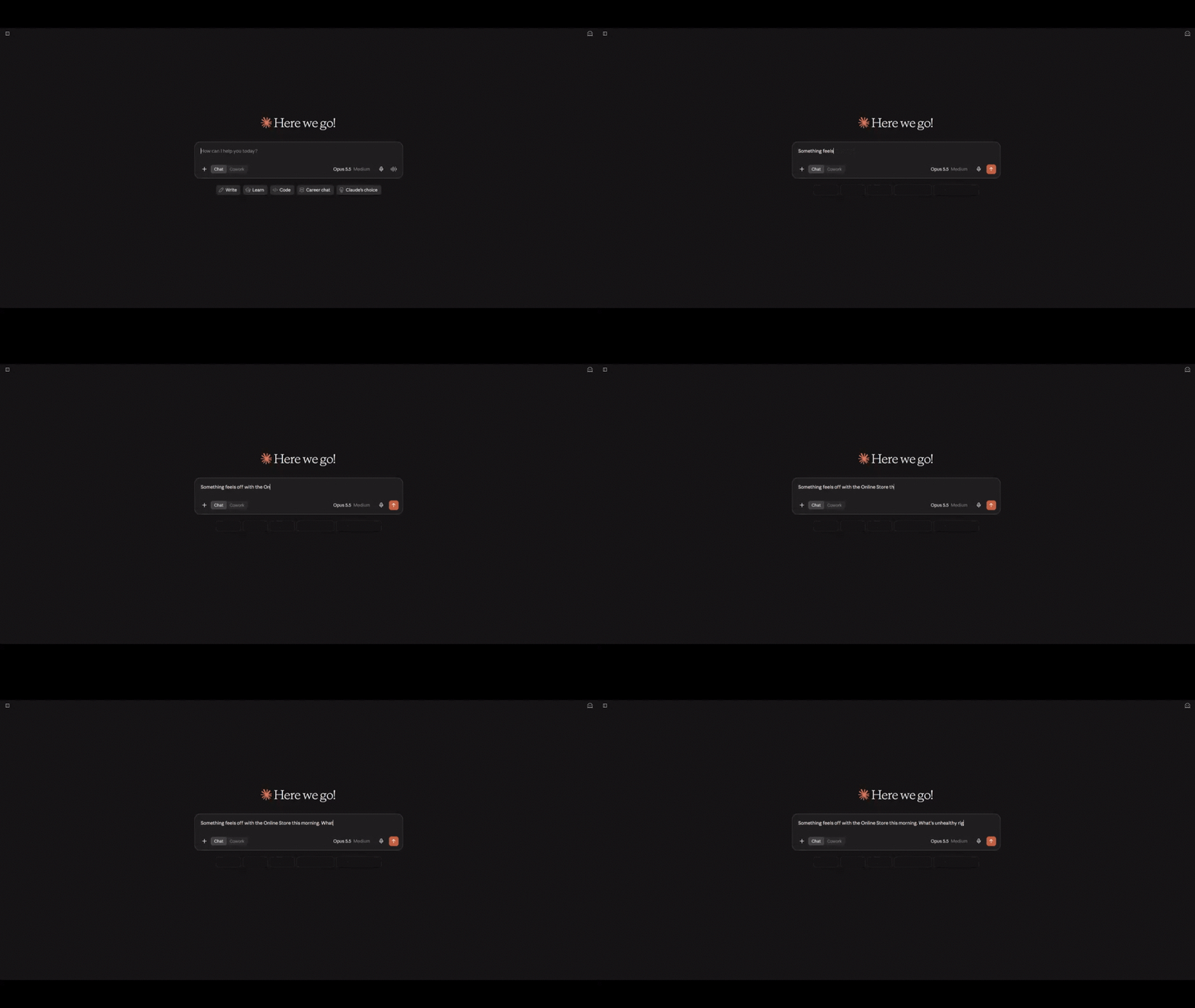
It's Monday morning and you have a stand-up in ten minutes. Instead of rushing to click through every workspace to see if anything broke over the weekend, you ask your assistant:
"Which of my workspaces are unhealthy right now, and why?"
Then behind the scenes:
- Your assistant works out that the answer is in SquaredUp.
- It asks the SquaredUp MCP server for your workspaces and their health.
- SquaredUp returns the live data.
- Your assistant explains what is wrong in plain English, and can dig into the dashboards behind it if you want more.
A few seconds later you have a short summary of what needs attention. Follow up with "Turn that into an update for the team" and you have something to paste straight into Slack.
Before you start
Turn on MCP
You need to be a tenant admin to change this setting.
- In SquaredUp, go to Settings > AI.
- Under External AI, enable Allow assistants to connect over MCP.
- Optionally, select an assistant under Allow users to chat with their own assistant. This adds a Chat in button to every dashboard, which opens a new chat in that assistant's web app, ready to discuss the dashboard. Each user still needs to connect that assistant to SquaredUp first, as described in Connect your assistant.
Find your server address
Use the address for the region your organization is hosted in. If you sign in to SquaredUp on an eu. address, your organization is in the EU.
- US:
https://mcp.squaredup.com/mcp - EU:
https://eu.mcp.squaredup.com/mcp
Connect your assistant
Every user connects their own assistant once, using the server address for their region. The first time it connects, a browser window opens for you to sign in to SquaredUp and, if you belong to more than one organization, pick which one.
On Pro, Max, Team and Enterprise plans, install the SquaredUp plugin. It adds the server and the SquaredUp skills in one go, and works in Claude on the web, Claude Desktop and Cowork.
- In Claude, go to Customize > Plugins.
- Click Add, select Add marketplace, then Add from a repository, and enter
squaredup/mcp. - Select the plugin for your region,
usoreu, and click Add. - Open the plugin's Connectors tab, connect SquaredUp, and sign in when prompted.
On Team and Enterprise plans, an Owner can make the plugin available to everyone instead. See Manage plugins for your organization.
Plugins aren't available on the Free plan. Add SquaredUp as a custom connector instead:
- Go to Customize > Connectors.
- Click +, then Add custom connector.
- Enter the server address, such as
https://mcp.squaredup.com/mcp, then click Add. - Sign in to SquaredUp when prompted.
To use SquaredUp in a chat, click + at the lower left of the chat, select Connectors, and turn on SquaredUp. See Use plugins in Claude and Getting started with custom connectors.
The SquaredUp plugin adds the server and a set of skills that teach Claude how to work with SquaredUp, such as building dashboards and querying data.
- Add the SquaredUp marketplace by running
/plugin marketplace add squaredup/mcp. - Install the plugin for your region by running
/plugin install us@squaredupor/plugin install eu@squaredup. - Run
/mcp, select the SquaredUp server, and sign in, in the browser window that opens.
To pick up new skills later, run /plugin marketplace update squaredup. If your organizations span both regions, install both plugins.
ChatGPT connects to MCP servers through developer mode, which is available on Plus, Pro, Business, Enterprise and Education accounts in ChatGPT on the web.
- In ChatGPT, go to Settings > Security and login and enable Developer mode.
- Go to Plugins, click +, and create a developer-mode app.
- Enter a name, such as SquaredUp, and the server address, such as
https://mcp.squaredup.com/mcp. Select OAuth for authentication. - Sign in to SquaredUp when prompted.
- In a chat, select Developer mode from the + menu, then select the SquaredUp app.
ChatGPT asks you to confirm write actions by default, so you review any change before it runs. See Developer mode.
If you get Copilot through Copilot Business or Copilot Enterprise, an admin must enable the MCP servers in Copilot policy for your organization or enterprise first. It is off by default.
Add the server to .mcp.json in the root of your workspace, or to ~/.copilot/mcp-config.json to use it in every workspace:
{
  "mcpServers": {
    "squaredup": {
      "type": "http",
      "url": "https://mcp.squaredup.com/mcp"
    }
  }
}
You can also run MCP: Add Server from the Command Palette and follow the prompts. The first time VS Code connects to the server, a browser window opens for you to sign in to SquaredUp. See MCP servers in the VS Code docs.
Add the server to ~/.cursor/mcp.json to use it in every project, or to .cursor/mcp.json in a project to use it there only:
{
  "mcpServers": {
    "squaredup": {
      "url": "https://mcp.squaredup.com/mcp"
    }
  }
}
Cursor opens a browser window for you to sign in to SquaredUp. Turn the server on and off from the Customize panel. See Model Context Protocol in the Cursor docs.
- Add the server by running
codex mcp add squaredup --url https://mcp.squaredup.com/mcp. If Codex detects that the server uses OAuth, it may open a browser window for you to sign in to SquaredUp automatically. - If you're not prompted to sign in, or need to authenticate again, run
codex mcp login squaredup. A browser window opens for you to sign in to SquaredUp.
See MCP in the Codex docs.
- In the agent side panel, click … and select MCP Servers.
- Click Manage MCP Servers, then View raw config.
- Add the server to
mcp_config.json, using the configuration below, and save it. - Open Agent settings with Ctrl+, (Cmd+, on macOS), go to the Customizations tab, and click Authenticate next to the SquaredUp server.
- Sign in to SquaredUp in the browser, copy the authorization code, paste it into the settings panel, and click Submit.
{
  "mcpServers": {
    "squaredup": {
      "serverUrl": "https://mcp.squaredup.com/mcp"
    }
  }
}
Antigravity needs the key serverUrl, not url. See MCP in the Antigravity docs.
Add the SquaredUp skills
Skills teach your assistant how to work with SquaredUp well, such as how to build a dashboard or write a graph query. The Claude plugin includes them. For any other agent that supports Agent Skills, run:
npx skills add squaredup/mcpSee the squaredup/mcp repository for installing individual skills.
Try your first prompt
- Ask a broad question to check the connection, such as "What's in my SquaredUp organization?"
- Approve the tool calls when your assistant asks. Read-only calls like listing dashboards may run without asking.
- Follow up with something specific, such as "Summarize the Production overview dashboard for a leadership update."
More prompts to try:
- "Which of my workspaces are unhealthy right now, and why?"
- "Build me a dashboard showing Azure costs by subscription for the finance team."
- "Who has access to the Customer A workspace?"
- "List the scheduled reports that go to external email addresses."
Troubleshooting
- MCP access required
None of your organizations can use MCP yet. Your organization needs to be on the Enterprise plan, and a tenant admin needs to turn on MCP in Settings > AI. - No access
Your SquaredUp account isn't a member of any organization on this server. Check that you're using the server address for your region.